Turn AI Influencer Photo Into Video: Complete 2026 Guide
Learn how to turn AI influencer photos into videos with image-to-video AI. Discover which shots animate best, prompts for natural motion, and glitch fixes.
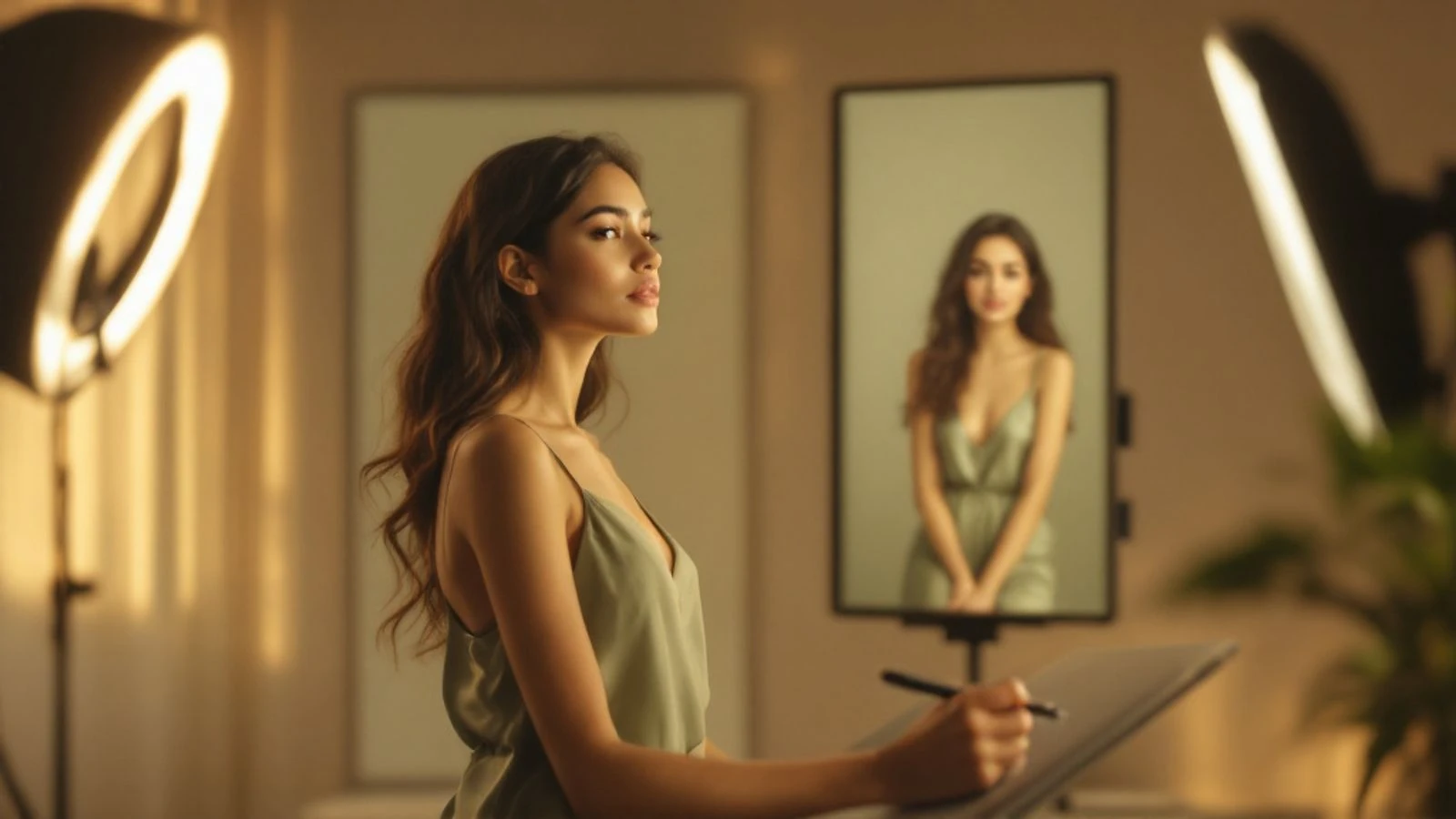
You can turn AI influencer photo into video using image-to-video AI tools that add motion like breathing, blinking, or full-body movement to a still image. These tools analyze the photo's composition and generate frames that create realistic animation—turning a static portrait into a short clip for social media, ads, or storytelling.
This guide walks you through how image-to-video AI works, which photos animate smoothly, the types of motion you can generate, and how to fix common glitches. You'll also get platform-specific tips and step-by-step instructions for animating your AI influencer photos.
Key takeaways
- Image-to-video AI predicts motion between frames based on your photo and text prompt, generating short video clips.
- Photos with clear facial features, neutral backgrounds, and natural poses animate more reliably than busy or highly stylized images.
- Motion types range from subtle (breathing, blinking) to dynamic (walking, dancing, camera movement).
- Prompts should describe one specific action, the speed, and the camera angle to avoid jittery or unnatural results.
- Common glitches include warping faces, flickering edges, and frozen backgrounds; you fix them by simplifying the prompt, cropping the photo, or regenerating with different settings.
How Does Image-to-Video AI Work?
Image-to-video AI uses diffusion models trained on video clips to predict what motion should happen next. You upload a still photo and write a text prompt describing the movement you want—"woman turns her head and smiles" or "camera slowly zooms in." The model analyzes the image's depth, pose, and objects, then generates new frames that blend smoothly from the original photo.
Most tools create short video clips. The AI doesn't understand your influencer's personality or story; it only sees pixels and patterns. That's why your prompt matters—it tells the model which parts of the image should move and how fast.
Some platforms use motion brushes or masks where you paint over the areas you want animated (for example, hair blowing in the wind while the face stays still). Others rely entirely on text prompts. Either way, the first frame of the video is always your original photo, ensuring your AI influencer's face stays consistent.
Which AI Influencer Photos Animate Best?
Not every photo makes a great video. Images with these traits animate most smoothly:
- Clear facial features and good lighting. The AI needs to see eyes, nose, and mouth clearly to animate expressions. Shadows or heavy filters can confuse the model.
- Neutral or simple backgrounds. Solid colors, soft blurs, or minimal patterns work best. Busy backgrounds (crowds, detailed architecture) often flicker or warp during animation.
- Natural poses. Photos where your influencer stands, sits, or looks at the camera animate more reliably than extreme angles, mid-jump shots, or heavily cropped close-ups.
- High resolution. Start with at least 1024×1024 pixels. Low-res or heavily compressed images lose detail when the AI generates motion.
Photos that struggle: extreme close-ups (the AI has nowhere to move), group shots (multiple faces confuse motion tracking), or images with hands near the face (fingers often glitch). If your photo includes props or accessories, expect small warping—jewelry, glasses, and hair are hardest for AI to animate consistently.
When you turn AI photos into video, test a few different shots to see which style works for your content. Portrait and mid-body shots typically give the cleanest results.
What Types of Motion Can You Generate?
Image-to-video AI can create several motion categories, each suited to different content types:
Subtle facial motion (breathing, blinking, slight head tilt) adds life to static portraits without changing the composition. Use this for profile photos, testimonials, or anywhere you want a "living photo" effect. Prompts: "subtle breathing and blinking," "gentle head tilt to the left."
Expression changes (smiling, laughing, looking surprised) animate your influencer's face while keeping the body still. Great for reaction clips or emotional storytelling. Prompts: "slowly smiles at the camera," "raises eyebrows in surprise."
Body movement (turning, walking toward camera, waving) shifts your influencer's pose or position. This works best with full-body or three-quarter shots. Prompts: "turns body to the right and waves," "walks slowly toward the camera."
Camera movement (zoom in, pan left, dolly out) keeps your influencer still but moves the viewpoint. Useful for dramatic reveals or cinematic intros. Prompts: "camera slowly zooms in on face," "camera pans right across the scene."
Environmental motion (hair blowing, clothing rippling, background elements) animates surroundings while your influencer stays mostly still. Prompts: "hair gently blows in the wind," "dress fabric sways softly."
You can combine types—"woman smiles and turns her head while hair blows in the wind"—but simpler prompts usually produce cleaner results. Stick to one or two actions per video.
How to Write Prompts for Natural-Looking Motion
Your text prompt controls everything the AI generates. Follow these rules to avoid robotic or glitchy motion:
- Describe one specific action. "Woman smiles" is clearer than "woman is happy and excited."
- Include speed or intensity. "Slowly turns head" versus "quickly turns head" produces very different results. Subtle and slow motion usually looks more realistic.
- Specify direction. "Turns to the left," "walks toward the camera," "looks down." The AI needs spatial cues.
- Mention the camera if it moves. "Camera zooms in" or "camera pans right" tells the model to animate the viewpoint, not the subject.
- Keep it short. 10-15 words is ideal. Long, complex prompts confuse the model and increase the chance of glitches.
Examples of strong prompts:
- "Woman slowly smiles and blinks naturally"
- "Man turns his head to the right and nods"
- "Camera slowly zooms in on her face"
- "Hair gently blows in the wind, face stays still"
- "Woman waves at the camera with her right hand"
Weak prompts to avoid:
- "Happy woman in a beautiful place feeling excited" (too vague, no action)
- "She dances and spins and laughs and waves" (too many actions)
- "Cinematic Hollywood-style reveal" (describes mood, not motion)
If your first video looks unnatural, simplify the prompt. Remove adjectives and focus only on the physical movement you want.
Common Video Glitches and How to Fix Them
Even with a good photo and prompt, you'll sometimes see these issues:
| Glitch | What it looks like | How to fix it |
|---|---|---|
| Face warping | Eyes, nose, or mouth distort during motion | Use a clearer photo with better lighting; reduce motion intensity in the prompt ("slowly" instead of "quickly") |
| Flickering edges | Outline of the body or hair flashes or vibrates | Crop the photo so your influencer isn't touching the frame edges; simplify the background |
| Frozen background | Your influencer moves but the background stays perfectly still (or vice versa) | This is normal for many tools; if it looks odd, try a prompt that includes "natural camera shake" |
| Jittery motion | Movement stutters or jumps instead of flowing smoothly | Regenerate with a simpler prompt; some AI models handle complex motion better than others |
| Hands or fingers melting | Fingers blur together or hands lose definition | Crop hands out of the frame, or use a prompt that doesn't involve hand movement |
| Clothing texture shifting | Patterns on shirts or dresses warp or "swim" during motion | Use solid-color clothing in your photos, or accept minor texture shifts as a current AI limitation |
If a glitch persists after three tries, the photo itself may not be compatible with that tool's motion model. Switch to a different shot or try a different video generator. Some platforms offer multiple video models (standard, cinematic, realistic)—test each one to see which handles your content best.
When you're ready to polish your clips, you can use Runway video editing techniques to trim glitchy frames or layer effects that mask small warps.
How to Turn AI Influencer Photos Into Videos With CreateInfluencers
CreateInfluencers includes image-to-video generation as part of its AI content toolkit. Here's how to animate your photos:
- Log in to your CreateInfluencers account at app.createinfluencers.com. If you don't have one yet, you can start free without a credit card.
- Select or generate a photo. You can use any photo from your AI influencer's gallery, generate a new one with a prompt, or upload an existing image.
- Click the video icon or "Animate" button below the photo. This opens the video generation panel.
- Choose a video model. CreateInfluencers offers several video model options. Start with the default model.
- Write your motion prompt. Describe the action in 10-15 words: "woman slowly smiles and blinks," "camera zooms in on her face," or "hair gently blows in the wind."
- Set video length. Check the platform for available video length options and credit costs.
- Generate. Processing takes time. The platform uses credits from your account (free accounts get starter credits; monthly plans include credits).
- Preview and download. The video loops in the preview player. If you're happy with it, download the MP4 file. If not, adjust your prompt and regenerate.
CreateInfluencers also offers talking videos where your AI influencer speaks a script you provide—you upload a photo, paste your script, choose a voice, and the platform generates a video with synced lip movement. This is a separate feature from standard image-to-video animation.
For adult content creators on platforms like Fanvue, CreateInfluencers supports 18+ video generation. Mainstream platforms (Instagram, TikTok) require safe-for-work content, and you should always label AI-generated videos according to each platform's rules.
Best Practices for Different Platform Formats
Each social platform has technical and policy requirements that affect how you use AI video:
Instagram Reels and Stories (9:16 vertical): Use portrait-oriented photos. Keep motion subtle—big camera moves or fast action can look jumpy on small phone screens. Instagram asks creators to label AI-generated content; the platform may add labels automatically. Instagram does not allow nudity or sexual content.
TikTok (9:16 vertical): Similar to Instagram but audiences expect faster pacing. Use short clips and combine multiple animated photos in one video with transitions. TikTok's AI-generated content labels apply to realistic synthetic media, and the community guidelines require authenticity disclosures. TikTok does not allow nudity or sexual content.
YouTube Shorts (9:16 vertical) and long-form YouTube (16:9 horizontal): YouTube's altered or synthetic content policy requires disclosure when realistic AI content could confuse viewers. Shorts work like TikTok (quick, punchy clips); long-form videos can use image-to-video for B-roll or visual storytelling between talking-head segments. If you monetize through the YouTube Partner Program, follow all advertiser-friendly content guidelines.
Facebook and Twitter/X (square 1:1 or landscape 16:9): These platforms favor horizontal or square formats. Use mid-body or full-body shots with camera movement rather than close-up facial animation. Meta's approach to labeling AI content applies to Facebook and Instagram; expect automatic labels on realistic AI-generated videos.
Fanvue (any format): Fanvue openly accepts AI-generated content as long as it's labeled. Check Fanvue's current fee page for their latest revenue split terms. You can post adult (18+) videos here, which aren't allowed on mainstream platforms. Use a mix of still photos, animated clips, and talking videos to keep your feed varied.
Always check the current platform rules before posting. In the US, the FTC expects clear disclosure of paid partnerships and sponsored content, whether it's AI-generated or not.
FAQ
Can I animate any AI influencer photo I create?
Yes, as long as the photo meets basic quality standards—clear facial features, good lighting, and at least 1024×1024 resolution. Photos with extreme angles, heavy filters, or very busy backgrounds may produce glitchy results. Test a few different shots to see which style animates best for your influencer.
How long should my video be?
Most image-to-video tools generate short clips. For social media, a few seconds per clip works best—long enough to show the motion clearly but short enough to avoid glitches. You can combine multiple short clips in a video editor to create longer content.
Do I need to label AI-generated videos on social media?
Yes. Instagram, Facebook, TikTok, and YouTube all require or encourage labeling realistic AI-generated content. Some platforms add labels automatically when they detect synthetic media. On Fanvue, you must disclose AI content in your profile or posts. When in doubt, add a simple disclaimer like "AI-generated" in your caption or as on-screen text.
Why does my AI influencer's face look weird when it moves?
Face warping usually means the photo wasn't clear enough for the AI to track facial features accurately, or the motion prompt was too complex. Use a well-lit, high-resolution photo with the face clearly visible. Simplify your prompt to one action ("slowly smiles") and reduce motion speed. If the issue persists, try a different photo or video model.
Can I use image-to-video for ads or sponsored content?
Absolutely. Animated AI influencer videos work well for UGC-style ads, product demos, and testimonials. Make sure you disclose both the AI generation and any paid partnership. Some brands specifically request AI content because it's faster and cheaper than traditional video production. Just follow platform rules and the FTC's disclosure guidelines.
What's the difference between image-to-video and talking videos?
Image-to-video animates motion (head turns, smiles, camera movement) based on a text prompt. Talking videos sync lip movement to a script you provide, so your AI influencer appears to speak. Talking videos are better for spokesperson content and voiceovers; image-to-video is better for lifestyle clips, B-roll, and visual storytelling. CreateInfluencers offers both features.
Ready to bring your AI influencer to life? You can create your AI influencer free on CreateInfluencers and start turning photos into videos today—no credit card required to get started.