Add Voiceover to AI Video: The Complete Creator's Guide
Learn how to add voiceover to AI video with tips on voice selection, script writing, and caption syncing. Master talking videos vs voiceovers today.
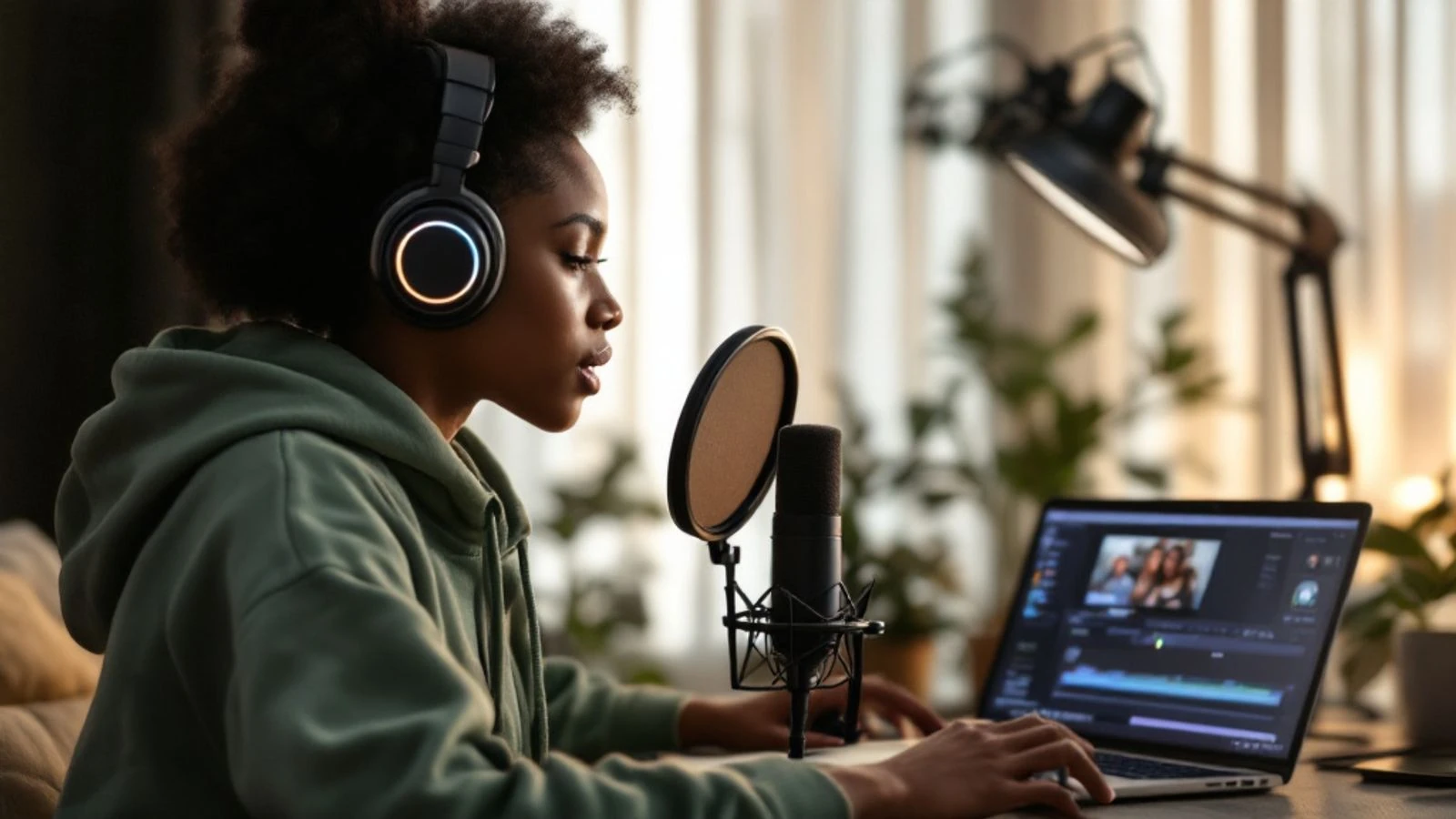
Adding a voiceover to an AI video means recording or generating a voice track that plays over your video footage, rather than using a talking-head character who lip-syncs the words. It's one of the fastest ways to turn a silent visual into an engaging story, explainer or product demo—and it works beautifully with AI-generated clips, stock footage or screen recordings.
This guide walks you through everything you need to know: when to use a voiceover instead of a talking character, how to pick the right voice, how to write scripts that sound natural when spoken, and how to sync captions so viewers can follow along. You'll also see the exact steps to add voiceover to AI video inside CreateInfluencers, plus common mistakes that make voiceovers sound robotic or off-putting.
By the end, you'll have a repeatable process for creating polished voiceover videos that hold attention and drive action.
Key takeaways
- Voiceover videos work best for tutorials, product demos and B-roll storytelling where you don't need a face on screen; talking videos shine for personal branding and direct-to-camera ads.
- Choose a voice that matches your brand personality and audience expectations—warm and conversational for lifestyle content, clear and neutral for education, energetic for entertainment.
- Write for the ear by using short sentences, contractions and natural pauses; read your script aloud before recording to catch awkward phrasing.
- Sync captions to your voiceover timing so viewers can read along, which boosts watch time and accessibility on every platform.
- Label AI-generated content when you publish to mainstream platforms like Instagram, TikTok or YouTube; transparency builds trust and meets platform requirements.
Voiceover vs Talking Video: Which Should You Choose?
A voiceover plays audio over B-roll, screen recordings or animated visuals—the viewer hears a voice but doesn't see a person speaking. A talking video shows a character or avatar whose lips move in sync with the words, like a spokesperson or influencer speaking directly to the camera.
Voiceover videos work best when you want to show a process, product or place without putting a face front and center. Think software walkthroughs, recipe tutorials, travel montages or product unboxings. The voice guides the viewer's attention to what's on screen, and you can cut between multiple shots without worrying about continuity of a person's appearance.
Talking videos shine when you need a personal connection or brand spokesperson. A face builds trust faster than a disembodied voice, which is why direct-to-camera testimonials, UGC-style ads and influencer introductions almost always use a talking character. If you're building a recognizable AI influencer persona, talking videos let followers connect with "their" creator across every post.
Use this decision tree: if your video is about you or your character, choose talking; if it's about what you're showing, choose voiceover. You can also mix both—start with a talking intro, then switch to voiceover B-roll for the tutorial, then close with the character on screen again.
How to Choose the Right Voice for Your AI Video
Your voiceover voice becomes part of your brand, so consistency matters. A warm, mid-tempo voice suits lifestyle and wellness content; a clear, neutral voice works for education and how-to videos; an upbeat, energetic voice fits entertainment and kids' content.
Match voice to audience expectations. If your AI influencer targets Gen Z on TikTok, a younger-sounding voice with casual pacing feels native. If you're creating LinkedIn thought leadership, a more mature, measured voice signals authority. Listen to successful creators in your niche and note the voice qualities they share—that's your baseline.
Human voice or AI voice? Recording your own voice is free and authentic, but it requires decent audio gear (or at least a quiet room and a smartphone close to your mouth) and comfort speaking on mic. AI voice generators have improved dramatically; many now offer dozens of voices with adjustable speed, pitch and emphasis. The best AI voices sound natural enough that most viewers won't notice—especially in short-form content where pacing and visuals move fast.
Test two or three voices on the same 15-second script and ask a few people which one they'd keep watching. Trust that gut reaction; if a voice feels slightly "off" to you, it will grate on your audience over dozens of videos.
If you're using CreateInfluencers to generate your video content, you can pair your AI influencer's visual style with a complementary voiceover voice—think of it as casting both the face and the narrator of your brand story. For step-by-step instructions on the full video creation process, see our guide on how to make AI videos.
Writing Scripts That Sound Natural When Spoken
The biggest mistake new creators make is writing an essay and reading it aloud. Spoken language is looser, more repetitive and full of short phrases that give the listener time to absorb each idea.
Write like you talk. Use contractions ("you'll" not "you will"), sentence fragments ("Here's the trick.") and rhetorical questions ("Why does this matter?"). Avoid jargon unless your audience already knows it, and cut any word that doesn't earn its place.
Read your script out loud before you record. Stumbles, tongue-twisters and run-on sentences jump out when you speak them. If you have to take a breath mid-sentence, split it into two sentences. If a phrase feels awkward, rewrite it on the spot.
Build in pauses. A two-second silence after a key point gives viewers time to process and signals a transition. In your script, mark pauses with ellipses or [PAUSE] so you remember to leave space when recording.
Here's a before-and-after example:
Before (written for reading):
"In order to maximize engagement on your content, it is essential that you optimize both the visual and auditory components of your video in a cohesive manner."
After (written for speaking):
"Want more engagement? Make sure your visuals and your voiceover work together. When they match, people watch longer."
The second version is shorter, clearer and sounds like a human talking to a friend—which is exactly what you want.
How to Add Voiceover to AI Video with CreateInfluencers
CreateInfluencers lets you generate AI videos from images, then layer a voiceover on top during editing or add it in post-production with your favorite video editor. Here's the step-by-step process:
- Create or select your AI character. Log in to CreateInfluencers, navigate to your character gallery, and pick the AI influencer you want to feature (or create a new one from a text prompt or uploaded photos).
- Generate a still image or photo pack. Use a text prompt to create a lifestyle photo, product shot or scene that matches your video topic. Photo packs give you a set of images in one theme—perfect for B-roll.
- Turn the image into a video. Select the image, choose "Create Video" and pick a video model. CreateInfluencers will render a short AI video clip.
- Download your video clips. Export each clip in the highest resolution available. You'll combine and edit them in the next step.
- Import clips into a video editor. Use any editor you're comfortable with—CapCut, DaVinci Resolve, Adobe Premiere, iMovie or even a mobile app. Arrange your clips on the timeline in the order your script describes.
- Record or generate your voiceover. Record your own voice with a USB mic or your phone's voice memo app, or use an AI voice generator. Export the audio as an MP3 or WAV file.
- Sync the voiceover to your video. Drop the audio file onto your timeline, then trim and rearrange video clips so each visual matches what the voiceover is describing. Add a short crossfade between clips to smooth transitions.
- Add background music (optional). A subtle music bed at 10–20% volume can fill silence and set a mood, but keep it low enough that it never competes with the voice.
If you want a talking video instead—where the character's lips move with your script—use CreateInfluencers' talking-video feature. You'll paste your script, and the platform generates a video with synchronized lip movements. For more on that workflow, check out our guide to creating a talking avatar.
Syncing Captions with Your Voiceover
Captions aren't optional anymore. Many viewers watch social video with sound off (at least initially), and captions make your content accessible to deaf and hard-of-hearing viewers, non-native speakers and anyone scrolling in a quiet space.
Auto-generate captions in your editor. Most modern video editors—CapCut, Descript, Premiere Pro—can transcribe your voiceover automatically. Review the transcription for errors (AI mishears names, technical terms and fast speech), then export captions as burned-in text or an SRT file.
Time captions to match speech rhythm. Each caption should appear just before the word is spoken and disappear shortly after. Two to four words per caption works well for fast-paced content; six to eight words for slower, educational videos. Break captions at natural phrase boundaries, not mid-sentence.
Style captions for readability. Use a sans-serif font (Arial, Helvetica, Montserrat) in white or yellow with a black outline or semi-transparent background box. Position captions in the lower third or center of the frame, avoiding any area where platform UI (like TikTok's sidebar) will cover them.
Platform-specific tips:
- TikTok and Instagram Reels both have built-in auto-caption tools; use them for convenience, but always review for accuracy.
- YouTube lets you upload an SRT file or use auto-captions; uploading your own file gives you full control over timing and formatting.
- LinkedIn and Twitter/X don't auto-generate captions, so burned-in text is your best bet for those platforms.
When you publish AI-generated videos to Instagram, TikTok or YouTube, remember to label them as AI content. Instagram and TikTok have built-in disclosure toggles, and YouTube requires you to check a box during upload if your video shows realistic people or places created or altered by AI. For details, see YouTube's policy on disclosing altered or synthetic content and TikTok's AI-generated content guidelines.
Common Voiceover Mistakes and How to Avoid Them
Mistake 1: Recording in a noisy room. Background hum, echo and keyboard clicks distract viewers and signal low production value. Record in a small, carpeted room (closets work surprisingly well), or hang blankets around your mic to dampen reflections. Use a pop filter or hold your phone slightly off-axis to reduce plosives (hard "p" and "b" sounds).
Mistake 2: Monotone delivery. Even the best script sounds boring if you read it like a grocery list. Vary your pitch and pace: speed up for exciting moments, slow down for key points, and pause for emphasis. Smile while you record—it changes the tone of your voice and makes you sound more approachable.
Mistake 3: Mismatched pacing. If your voiceover races ahead of the visuals, viewers get confused. If it lags behind, they get bored. Watch your timeline with audio on and adjust clip lengths so each visual "reveal" lands exactly when you describe it.
Mistake 4: Overusing filler words. "Um," "uh," "like" and "you know" are fine in casual conversation, but they pile up fast in a recording. Script your key points so you're not improvising, and edit out fillers in post. Most video editors let you cut silence and tighten gaps with a few clicks.
Mistake 5: Ignoring audio levels. Your voiceover should peak around -6 to -3 dB, leaving headroom so it never distorts. Background music should sit at -18 to -12 dB—audible but never louder than the voice. Use your editor's audio meters and normalize or compress tracks if needed.
Mistake 6: Forgetting the hook. The first three seconds of your voiceover decide whether viewers keep watching. Start with a question, a bold statement or a promise ("Here's how to double your engagement in one week"). Save the slow build-up for later in the video.
For a broader look at tools that can streamline your entire content workflow—including voiceover and editing—explore our roundup of the best AI tools for content creators.
FAQ
Can I use AI-generated voices for commercial videos?
Yes, as long as the AI voice service you're using grants commercial rights. Check the terms of your voice service; many paid plans include commercial licenses while free tiers often restrict commercial use. If you're monetizing on YouTube or selling products, a paid voice license protects you from takedowns or legal issues.
How long should my voiceover script be for a 60-second video?
A comfortable speaking pace is around 140–160 words per minute, so aim for 140–160 words for a one-minute video. That leaves room for pauses, music breaks and on-screen text. Write your script, read it aloud with a timer, then trim or expand to hit your target length.
Do I need to disclose that my video uses an AI voice?
Platform rules focus on disclosing AI-generated visuals of people or places, not AI voices. However, transparency builds trust: if your audience might assume you're speaking, a quick note ("voiceover by AI") in the description or a pinned comment is good practice. If you're running ads, check the platform's ad policies—some require disclosure of any AI-generated content.
What's the best free tool to add voiceover to AI video?
CapCut (mobile and desktop) is free, beginner-friendly and includes auto-captions, AI voice generation and a full timeline editor. DaVinci Resolve is a professional-grade editor that's also free, though it has a steeper learning curve. For AI voices specifically, check the current free tiers available from various AI voice services before committing to a paid plan.
Can I add voiceover to a talking avatar video?
Technically yes, but it usually looks odd—viewers expect the character's lips to match the audio. If you need both a talking character and additional narration, use the talking avatar for direct-address segments (introductions, calls to action) and switch to voiceover over B-roll for explanations or demos. That way each audio style has its own visual context.
How do I make my AI voiceover sound more human?
Add natural pauses, vary the pitch and speed slightly (most AI tools let you adjust these), and insert breaths or subtle filler sounds if the tool supports it. Breaking your script into shorter sentences also helps—AI voices handle simple phrases better than long, complex sentences. Finally, layer in light background noise (a room tone or subtle ambience) so the voice doesn't sound like it's floating in a vacuum.
Ready to create professional AI videos with perfectly synced voiceovers? Start building your AI influencer for free on CreateInfluencers—no credit card required—and turn your next idea into a polished video in minutes. Your audience is waiting.