Your Ultimate Guide to the Perfect Discord Avatar Size
Master the correct Discord avatar size for a flawless profile. Our guide covers dimensions, formats, and best practices for avatars, icons, and banners.
While the official Discord avatar size is 128 x 128 pixels, here’s a pro tip: always upload a larger, higher-resolution image. I recommend starting with at least 512 x 512 pixels. Discord automatically resizes it for you, and feeding its compression algorithm more detail results in a much sharper, clearer profile picture.
Your Quick Reference for All Discord Image Sizes
Getting your visuals right on Discord is key to building a memorable identity, whether it's for your personal profile or a bustling community server. Adhering to the recommended dimensions ensures your images look crisp and professional on every device, from a smartphone screen to a wide desktop monitor. Properly sized images prevent ugly pixelation and weird cropping, which goes a long way in making a great first impression.
This graphic breaks down the essential dimensions for the most common Discord assets you'll be working with.
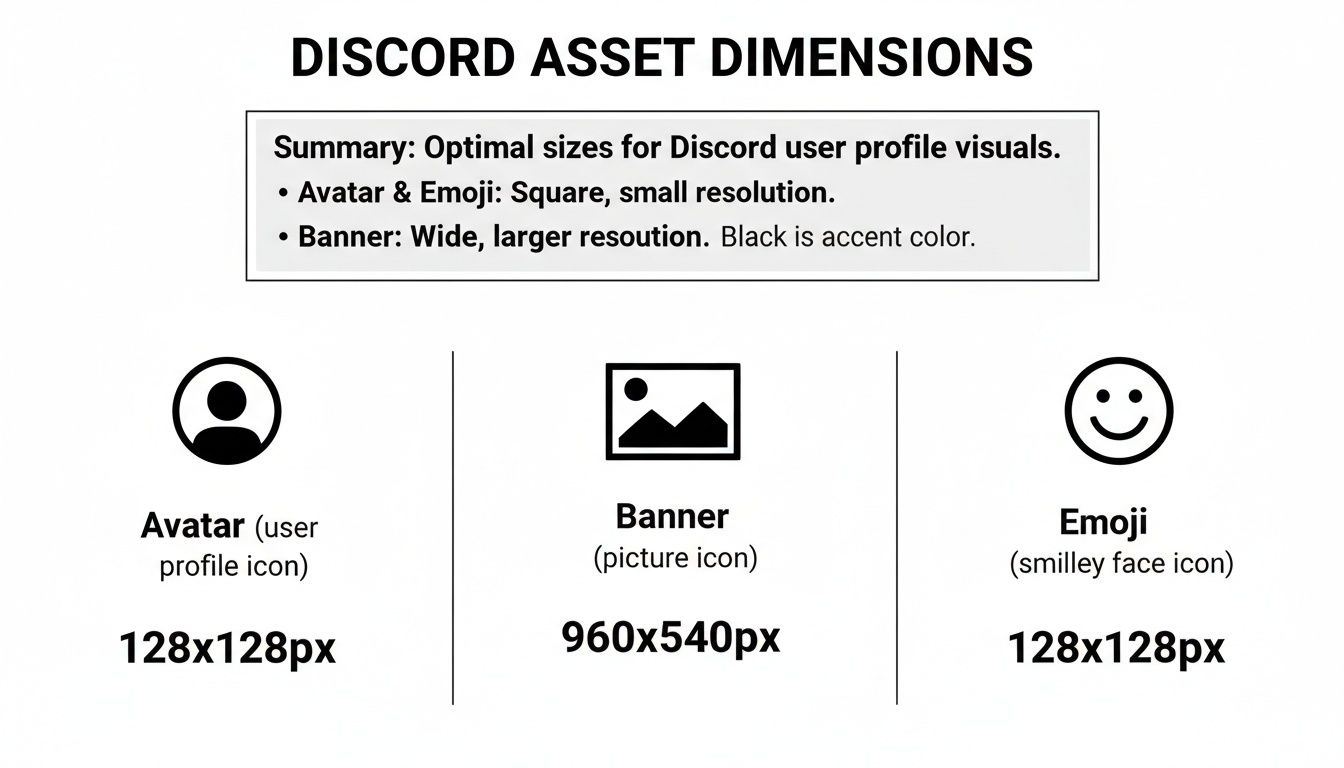
As you can see, Discord keeps avatars and emojis at that standard 128 x 128 pixel size, while the server banner gets a much larger canvas at 960 x 540 pixels.
For a quick overview of all the important specs in one place, here’s a handy table.
Discord Image Dimensions Quick Reference
This table summarizes the critical dimensions, file sizes, and aspect ratios for the most common Discord images. Keep it bookmarked for easy access.
| Asset Type | Recommended Upload Size (Pixels) | Display Size (Pixels) | Aspect Ratio | Max File Size (Free / Nitro) |
|---|---|---|---|---|
| Profile Avatar | 512 x 512 | 128 x 128 | 1:1 | 8 MB |
| Server Icon | 512 x 512 | 48 x 48 | 1:1 | 8 MB |
| Server Banner | 960 x 540 | Varies | 16:9 | 10 MB (Nitro Boost Lvl 2) |
| Server Invite | 1920 x 1080 | 520 x 292 | 16:9 | 10 MB (Nitro Boost Lvl 3) |
| Custom Emoji | 128 x 128 | 32 x 32 | 1:1 | 256 KB |
| Custom Sticker | 320 x 320 | 160 x 160 | 1:1 | 512 KB |
This reference should cover most of your day-to-day needs for keeping a server or profile looking sharp and professional.
Discord has standardized its avatar size at 128 x 128 pixels with a perfect 1:1 aspect ratio to ensure they look great everywhere. As mentioned, the platform is smart enough to scale down larger uploads without sacrificing quality, which is why uploading a bigger file is the best practice. You can find more practical design advice in our other creator guides to really make your visuals stand out.
Mastering the Perfect Discord Avatar
Your avatar is your digital handshake on Discord. It’s the one image that represents you everywhere—in chats, voice channels, and member lists. Getting it right makes a huge difference.
While Discord ultimately displays your avatar at 128x128 pixels, the key to a sharp, clean look is to start bigger. Always upload an image that's at least 512x512 pixels. This gives Discord's compression more data to work with, which means your final avatar will look crisp and clear, not fuzzy.
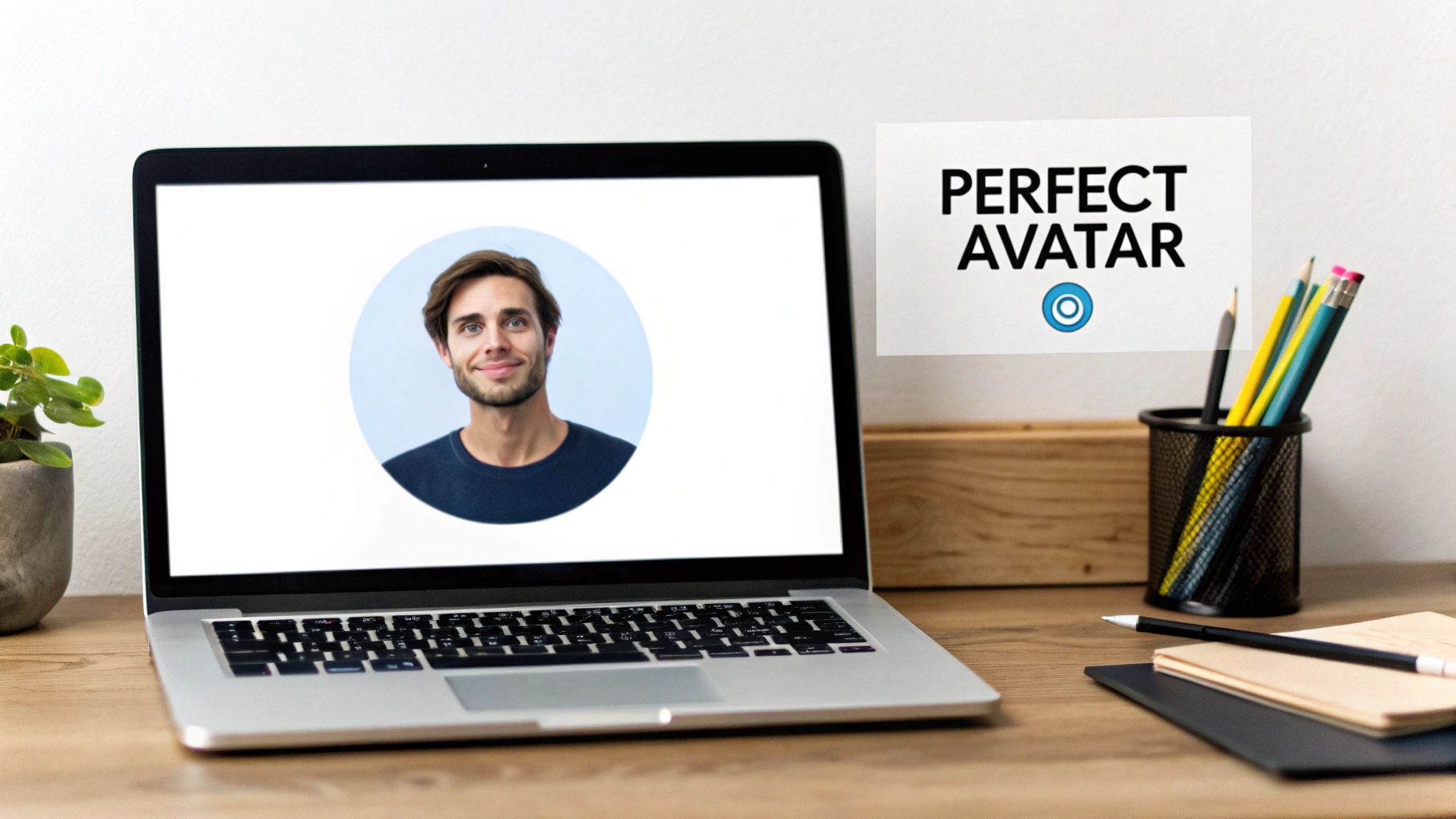
The biggest thing to remember is that Discord forces every avatar into a circle. Whatever square image you upload will have its corners chopped off. If you're not careful, this can ruin an otherwise great picture.
Designing for the Circular Crop
To make sure your avatar looks exactly how you want it, keep these simple design rules in mind:
- Center the Focus: Position the most important part of your image—whether it’s your face or a logo—right in the middle of the frame.
- Create a "Safe Zone": Don't place any critical details near the corners of your square image. Leave a bit of buffer space around the edges to ensure nothing important gets lost to the circular mask.
- Preview It First: Before you upload, use any basic image editor to pop a circular frame over your square image. This simple step gives you an exact preview of how Discord will crop it.
If you're looking for some inspiration, checking out different Discord profile picture styles and ideas can spark some great concepts.
Pro Tip: If you have Nitro, you can use an animated GIF to really stand out. Just make sure it’s a perfect square (1:1 ratio) and under the file size limit. A smooth, subtle loop is usually more effective than something fast and chaotic.
Paying attention to the recommended Discord avatar size and the circular crop is a small effort that pays off big. It enhances your presence across the platform, making your profile look more polished and memorable. And if you're aiming for a truly unique look, tools like https://createinfluencers.com/ can help you design a custom AI avatar in no time.
Designing an Unforgettable Server Icon
Think of your server icon as the digital handshake for your community. It’s the very first thing people see when they spot your server in a list or get an invite link, making it a crucial part of your server's identity. Just like with a personal avatar, starting with a larger, high-quality image is the secret to a professional look.
The ideal size to upload is 512 x 512 pixels. While Discord will display it much smaller, providing this higher-resolution square image gives the platform more data to work with. This ensures your icon stays crisp and clear everywhere it appears, avoiding that dreaded pixelated or blurry look.
Best Practices for Server Icon Design
A truly effective icon is simple, bold, and easy to recognize at a glance. Remember, Discord automatically crops your square image into a circle, so you absolutely have to design with that shape in mind.
- Keep It Simple: Tiny text or overly complex details will just turn into a smudge when the icon is scaled down. Stick to clean, clear visuals.
- Go for High Contrast: Strong colors and distinct shapes will make your icon pop in a crowded server list.
- Center Your Design: Make sure the most important part of your image or logo is right in the middle. This prevents it from getting awkwardly cut off by the circular crop.
If you need a hand creating a unique look from scratch, a good Discord logo generator can be an excellent starting point for brainstorming ideas.
Nitro Boost Perk: Has your server reached Boosting Level 1? If so, you can upload an animated GIF for your icon! This is a fantastic way to grab attention and inject some personality into your server. All the same rules apply: keep the animation simple, loop it smoothly, and make sure the main action is centered.
Banners and Invite Splashes: Leveling Up Your Server's Look
Once you've nailed your avatar and server icon, banners and invite splashes are your next step in creating a truly professional-looking community. These are premium features you get through Server Boosting, and they make a huge difference. They let you customize the very top of your channel list and the background of your server invite links, giving your server a polished, branded feel from the moment someone joins.
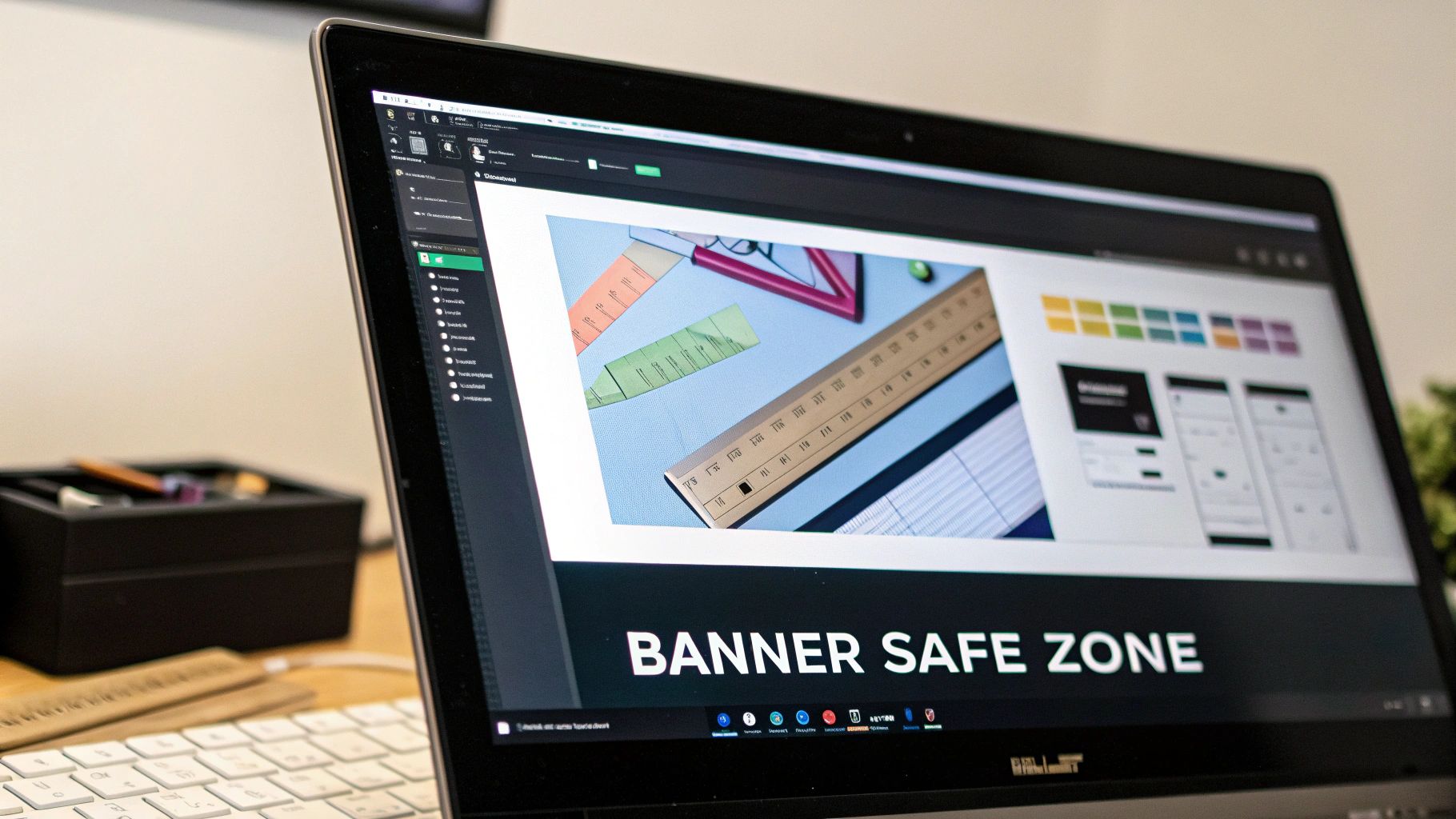
The Server Banner is that header image sitting right above your channel list. The ideal size is 960 x 540 pixels, which is a standard 16:9 aspect ratio. But here's the catch: designing for this space isn't as straightforward as it seems because the Discord interface itself will cover up parts of your image.
Designing for the Banner Safe Zone
To make sure your key visuals don't get cut off, you need to work within a "safe zone." The top 48 pixels of the banner are almost always hidden by the server name and other UI elements. This means you have to keep all your important stuff—like text or logos—away from that top edge.
Think of the top portion of your 960x540 canvas as a bleed area that's likely to be obscured. The safest bet is to center your main design elements vertically. This ensures they'll always be visible, no matter what.
Then there's the Server Invite Splash. This is a much bigger canvas, coming in at a recommended 1920 x 1080 pixels. It's the full-screen background people see when they click your invite link, so it’s your chance to make a big first impression. You have a lot more creative freedom here since it's a background image, but something that captures the vibe of your community will always work best.
Here's how you get access to these features:
- Server Banner: Unlocked at Server Boost Level 2.
- Invite Splash: Unlocked at Server Boost Level 3.
Taking the time to get these assets right can transform your server from just another chat room into a legitimate community hub.
File Formats and Size Limits: The Nitty-Gritty Details
Getting your Discord avatar size right is half the battle; the other half is wrestling with file formats and size limits. Picking the right format and keeping your file lean ensures everything uploads smoothly and looks crisp. Discord keeps it simple, supporting the three mainstays of web images: JPG, PNG, and GIF.
So, which one should you choose?
Think of it this way: JPGs are your go-to for photos and images with lots of color detail, as they balance quality and file size really well. PNGs, on the other hand, are perfect for graphics with clean lines, text, or—most importantly—a transparent background. And of course, GIFs are the only game in town for those slick animated avatars and server icons.
Staying Within the File Size Limits
For most users, Discord sets a hard limit of 8MB for any avatar or server icon upload. Frankly, that’s more than enough for a well-optimized image. You shouldn't have any trouble staying under that cap.
If you’re a Discord Nitro subscriber, however, you get a much bigger playground. The file size limits get a serious boost, which is fantastic for super high-quality images and more elaborate GIF animations.
Pro Tip: Always, always compress your images before you upload them. You can use free online tools to slash the file size—often with zero visible difference in quality. A quick trip through a compressor can take a beefy 512x512 PNG that's over the 8MB limit and shrink it down to just a few hundred kilobytes, avoiding frustrating upload errors.
Common Pitfalls and How to Sidestep Them
Getting the dimensions right is half the battle, but a few common slip-ups can still tank the quality of your avatar or server icon. Here’s what to watch out for and how to get it right every time.
One of the most frequent mistakes I see is starting with a low-resolution image. If you upload a grainy or tiny photo, Discord's compression will only make it worse, leaving you with a blurry, pixelated mess. The golden rule is to always begin with a high-quality, larger source file—think 512x512 pixels or more. This gives Discord plenty of data to work with, ensuring your final image looks sharp and clean.
Another classic error is forgetting about the circular mask Discord applies to all avatars. People often design a great square image but place key elements like text or parts of their face too close to the corners. Once Discord crops it into a circle, those details are gone forever. Always keep your main subject dead center and leave a generous "safe zone" around the edges.
Keeping Your Designs Clean and Clear
When it comes to small icons, less is almost always more.
Unreadable Server Icons: A server logo packed with tiny text or intricate details might look fantastic on your design canvas, but it will turn into an unrecognizable blob in the server list. Stick to bold, simple shapes and high-contrast colors that make your icon instantly identifiable, even at a glance.
Disruptive GIFs: If you have Nitro, it's tempting to go wild with an animated avatar or icon. But a GIF that's too fast, flashy, or chaotic can be incredibly distracting for other users. Aim for a smooth, subtle loop. It looks more professional and avoids running afoul of Discord's rules against rapidly flashing animations.
Want more tips for creating visuals that pop online? Check out the latest guides and articles on the CreateInfluencers blog.
Common Questions About Discord Image Sizes
Getting your Discord visuals dialed in can bring up a few common questions. Think of this as a quick reference to clear up any lingering confusion about the platform's image specs, building on what we've already covered.
Let's dive into some of the most frequent sticking points.
Why Should I Upload a Big Image for a Tiny Avatar?
It seems a bit weird, right? Discord displays your avatar at 128x128 pixels, so why bother uploading a much larger 512x512 pixel file?
It all comes down to quality. When you give Discord's compression system more data to work with, it can create a much sharper, cleaner final image. Starting with a higher-resolution picture and letting Discord scale it down results in a crisp avatar that looks great, avoiding the pixelation you'd get from uploading a small image.
What Are the Rules for Animated GIF Avatars?
Animated avatars are a fun perk, but they're exclusive to Discord Nitro subscribers. If you've got Nitro, you can upload a GIF, but there are a couple of key rules to follow.
First, your GIF still has to meet the file size limits, though Nitro gives you a much bigger allowance. More importantly, your animation can't include any rapidly flashing lights or strobing effects. This is a big one, as it violates Discord's accessibility guidelines and terms of service. Your animation will loop automatically whenever someone mouses over your icon or checks out your full profile.
How Do I Fix a "File Too Large" Error?
Running into the "file too large" error is a classic problem, but thankfully, it's an easy fix. All you need to do is shrink your image's file size.
You can use a free online compression tool—they're great at reducing file size without a noticeable drop in visual quality. Another option is to use an image editor; just re-save your file using a slightly lower quality setting or a different format until it fits under the limit.