Create Realistic AI Generated Images That Look Truly Real
Discover how to generate realistic AI generated images that fool the eye. Expert tips on prompts, tools, and post-processing techniques.
Creating AI-generated images so realistic they could be mistaken for photographs isn't a futuristic fantasy anymore—it's a practical skill you can learn right now. This guide is all about the hands-on techniques that bridge the gap between uncanny digital art and truly photorealistic results, perfect for everything from ad campaigns to artistic projects.
Beyond the Uncanny Valley: AI Art Gets Real
We've definitely hit a tipping point. AI-generated images are no longer just a cool party trick; they're becoming virtually indistinguishable from real photos. The days of mangled hands and waxy, dead-eyed faces are behind us, replaced by images with genuine texture, believable lighting, and convincing emotion.
My goal here is to focus on the practical steps that will help you consistently get these high-quality results. Whether you're crafting visuals for your brand or producing stunning digital art, understanding the process is everything.
Why Photorealism Is Such a Big Deal Now
The appetite for high-quality, authentic-looking visuals is insatiable, and it's happening just as AI image generators are exploding in popularity.
The global market was valued at USD 418.5 million in 2024 and is expected to skyrocket to USD 2,633.2 million by 2035. This incredible growth, powered by sophisticated deep-learning models, shows just how much the industry is betting on creating believable, high-fidelity content. You can see the full market analysis from Fortune Business Insights to get a sense of the scale.
What does this boom mean for you? It means better, more accessible tools are at your fingertips. Now, anyone can:
- Create Custom Visuals On-Demand: Generate unique images for social media, websites, or marketing campaigns without the time and expense of a photoshoot.
- Speed Up Creative Projects: Rapidly visualize concepts, mock up designs, or create storyboards in a fraction of the time it used to take.
- Unlock Artistic Expression: Empower anyone, regardless of traditional art skills, to bring their most imaginative ideas to life with stunning detail.
The real goal isn't just to make an image; it's to create a feeling. You've achieved true realism when the technology fades into the background, letting the story and emotion of the picture shine through.
Whether you're diving into the world of AI influencers or just need incredible visuals for a project, the core principles are the same. Our team at CreateInfluencers is constantly pushing these boundaries, and this guide is built on the foundational knowledge that will help you do the same.
Choosing Your Toolkit for Photorealism
When you’re chasing photorealism, not all AI models are built the same. Honestly, the tool you pick is the most important decision you'll make right at the start. It's what separates a genuinely breathtaking, realistic image from something that gets stuck in the uncanny valley.
Think of it as your digital darkroom. To get started, you can find a solid rundown of the best AI image generators to see what's out there.
The field is exploding. In 2024 alone, the AI image generator market was valued at USD 9.10 billion, and forecasts predict it will hit USD 63.29 billion by 2030. This boom, led by giants like OpenAI and Stability AI, means the tech is getting better at an incredible pace.
Matching the Tool to the Task
Every platform has its own flavor and specialty. Knowing their quirks is key to picking the right one for what you're trying to accomplish.
- Midjourney: This is the artist's choice. It’s known for its cinematic, highly stylized output. If you want evocative portraits or atmospheric scenes that pop with emotion right away, Midjourney is your go-to.
- Stable Diffusion: For the control freaks (like me!). Its open-source backbone means you can use custom models and fine-tune everything. It’s unbeatable for creating consistent characters across multiple images or nailing a very specific photographic look.
- DALL-E 3: Now part of ChatGPT, its biggest strength is understanding what you mean. It excels at piecing together complex scenes with lots of moving parts, turning plain English into remarkably accurate visuals.
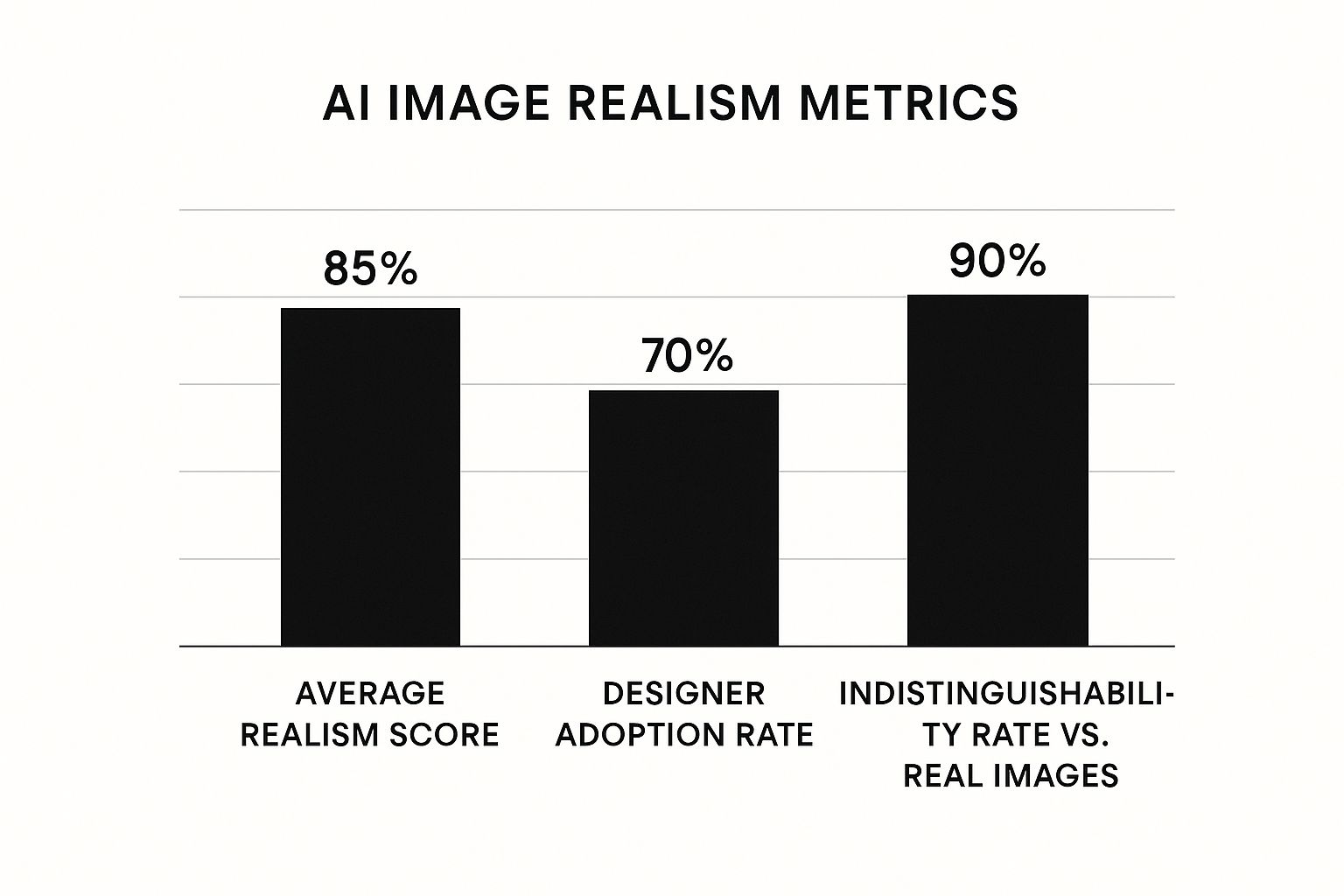
The data here really drives home the point: AI-generated content is getting convincingly real, and creative pros are taking it seriously.
Comparing Top AI Tools for Realistic Images
To make the choice a little easier, here's a side-by-side look at the heavy hitters. Each has its own sweet spot, so consider what you need to do before diving in.
| AI Tool | Best For | Realism Strength | Ease of Use | Control Level |
|---|---|---|---|---|
| Midjourney | Artistic, cinematic, and stylized images | Excels at mood, lighting, and texture | Very beginner-friendly (Discord-based) | Moderate |
| Stable Diffusion | Customization, character consistency, specific styles | High, with potential for hyperrealism | Steeper learning curve (requires setup) | Very High |
| DALL-E 3 | Complex scenes, storyboarding, prompt accuracy | Great at coherence and following instructions | Easy (integrated with ChatGPT) | Moderate |
Ultimately, the "best" tool really depends on the project. DALL-E 3 is fantastic for quickly visualizing a complex idea, while Stable Diffusion is what you'll want for a polished, commercial-grade campaign where every detail matters.
So, How Do You Choose?
Always start with your end goal. Are you making one amazing piece of art? Or do you need a dozen consistent images for a new ad campaign?
An ad agency creating product mockups, for example, would probably lean on Stable Diffusion for its pinpoint control over light and texture. On the other hand, a digital artist trying to capture a specific feeling in a portrait might get better results faster with Midjourney’s artistic interpretation. For a deeper look at how to use these platforms, we have several other guides available. You can check them out here: https://createinfluencers.com/guides.
Your choice of generator is like a photographer choosing between a portrait lens and a wide-angle lens. Both are powerful, but they are designed for fundamentally different types of shots. Using the right one from the start saves immense time and effort.
At the end of the day, the right tool is the one that fits your creative vision and how much you like to tinker. Don't hesitate to play around with a few before you lock one in for a big project.
How to Prompt Like a Photographer
If you want to create AI-generated images that look truly realistic, you have to change your mindset. Stop just describing a scene and start thinking like you're holding a camera. Why? Because the AI models were trained on billions of photos, all of which came with a ton of metadata—data that details the exact camera, lens, settings, and lighting used for the shot.
This is your secret weapon.
When you use the language of photography in your prompts, you're tapping directly into the AI's deep understanding of what makes a photo look real. It’s the difference between asking for "a picture of a woman" and commissioning a specific, tangible photograph with a clear artistic vision.
Mastering Camera and Lens Specifications
Your first major leap toward realism comes from specifying your virtual camera gear. A simple description will almost always produce a generic image, but adding a specific lens and aperture instantly creates depth, focus, and a professional feel. Just think about the visual gap between a quick smartphone snap and a professional portrait; that difference is almost always about the lens.
Let’s see it in action.
- Before:
A portrait of a man smiling. - After:
Portrait of a man smiling, shot on a Canon EOS R5 with an 85mm f/1.4 lens, shallow depth of field, natural light.
The "after" prompt isn't just more detailed; it's giving the AI a blueprint. It mimics the unique look of an 85mm portrait lens, which is legendary for creating that beautiful background blur (bokeh) and compressing facial features in a flattering way. This one change can turn a flat, sterile-looking face into a striking professional headshot. Mastering your input is everything, so it’s worth diving into the best practices for prompt engineering to really nail this.
The most powerful prompts don't just describe the subject; they describe the photograph itself. You're not just telling the AI what to create, but how it should have been captured.
Controlling Light Like a Cinematographer
Lighting is the soul of photography, and it’s non-negotiable for making AI-generated images realistic. Vague terms like "well-lit" will get you nowhere. You need to get specific and evocative, using words that describe the quality, direction, and even the color of the light.
Think about the mood you’re after. Is it the soft, warm glow of a sunrise? Or the harsh, dramatic shadows of high noon?
Here are a few of my go-to lighting keywords to get you started:
- Golden Hour: This creates that warm, soft, dreamy light that’s perfect for flattering portraits and landscapes.
- Blue Hour: Use this for the period just after sunset to get cool, moody, and ethereal tones.
- Dramatic Rim Lighting: This puts the light source behind the subject, creating a bright outline that makes them pop from the background.
- Soft Window Light: This simulates light coming through a large window, creating gentle, diffused shadows that are ideal for natural-looking indoor shots.
Using terms like these gives the AI explicit instructions on how to sculpt the scene with light, adding a layer of authenticity that generic prompts can never replicate.
Embracing the Analog Aesthetic
Here’s a trick I love: sometimes, what makes an image feel real is a little bit of imperfection. AI-generated images can often be too perfect—too clean, too sharp, and totally lacking the subtle texture of a physical photograph. This is where specifying a particular film stock can work wonders.
By mentioning a classic film type in your prompt, you're telling the AI to introduce qualities like film grain, distinct color palettes, and unique contrast levels.
shot on Kodak Portra 400will give you warm tones and beautiful skin rendering.shot on Fujifilm Velvia 50is fantastic for vibrant, super-saturated landscapes.shot on Ilford HP5delivers a classic, punchy, high-contrast black and white look.
This one detail adds a final layer of texture and character. It breaks up that sterile digital perfection and tricks the viewer's eye into believing the image was captured on actual film. It’s a subtle technique, but it’s incredibly effective. For more insights on crafting compelling AI visuals and content, check out some of the tips on our blog: https://createinfluencers.com/blog.
Refining Your Image Through Iteration
Your first attempt at a prompt rarely produces the final image. Think of it as a starting point—a block of digital clay. The real art of creating ai generated images realistic enough to pass for a photograph lies in the refinement process. It's less about a single perfect command and more about a conversation with the AI.
This back-and-forth is where you take control. Each small tweak, each added detail, nudges the AI from a decent first draft to a flawless final piece.
Lock in Your Composition with Seed Numbers
One of the most essential tools for this process is the seed number. A seed is basically a specific starting number that kicks off the AI's random generation process. When you use the same seed number again, you're telling the AI to start from that exact same point.
Why is this so powerful? It locks in the core elements of an image—the composition, the character's pose, the lighting. This allows you to experiment with specific details without the entire image changing. Imagine you get a great portrait, but you want to change the person's shirt. Without a seed, a new prompt would generate a completely different person in a different pose. With a seed, you keep the portrait you like and just change the shirt.
- Initial Prompt:
Photorealistic portrait of a woman, golden hour lighting, shot on 85mm lens --seed 12345 - Iterated Prompt:
Photorealistic portrait of a woman **wearing a red leather jacket**, golden hour lighting, shot on 85mm lens --seed 12345
The result? The same woman in the same pose, now wearing a red leather jacket. This is how you make targeted, incremental improvements.
Eliminate Unwanted Elements with Negative Prompts
Sometimes, the best way to get what you want is to be crystal clear about what you don't want. That's what negative prompts are for. They act as a filter, steering the AI away from common flaws and unrealistic artifacts that immediately give away an image as being AI-generated.
Using a negative prompt is crucial for climbing out of the "uncanny valley." It's your way of proactively removing issues before they even appear in the image.
I like to think of a negative prompt as my personal art director, telling the AI, "Great start, but absolutely no plastic-looking skin, no distorted hands, and let’s avoid that generic CGI look." You're instructing it on what to exclude, which has a massive impact on the realism of what it includes.
Here are a few of my go-to negative prompts to boost realism:
--no cgi, render, fake, cartoon, anime--no deformed hands, extra fingers, mutated limbs--no plastic skin, blurry, oversaturated, grainy
You don't need a huge list to start. Begin with a few key terms and add more as you notice specific problems cropping up in your generations.
Make Surgical Fixes with Inpainting and Outpainting
Even with a perfect prompt and seed, tiny flaws can sneak in. A weirdly bent finger, a distorted eye in the background—these things happen. This is where tools like inpainting and outpainting come in. They allow you to make surgical corrections right inside the generation platform.
Inpainting is for fixing things inside the image. You can select a small area—like that one weird finger—and have the AI regenerate only that section based on a new prompt. It's a lifesaver for correcting minor errors without having to reroll the entire image and lose a composition you love.
Outpainting, as the name suggests, expands the image outward. It intelligently generates new scenery beyond the original borders, matching the style, lighting, and content of your image. It’s fantastic for when you’ve generated a perfect close-up but realize you need a wider shot, or want to change a vertical portrait into a horizontal landscape.
By combining these techniques—using a seed to lock down your composition, a negative prompt to filter out junk, and inpainting to fix the tiny details—you shift from simply writing prompts to truly directing the AI. This is how you create an image that's not just good, but believable.
Adding the Final Polish in Post-Production
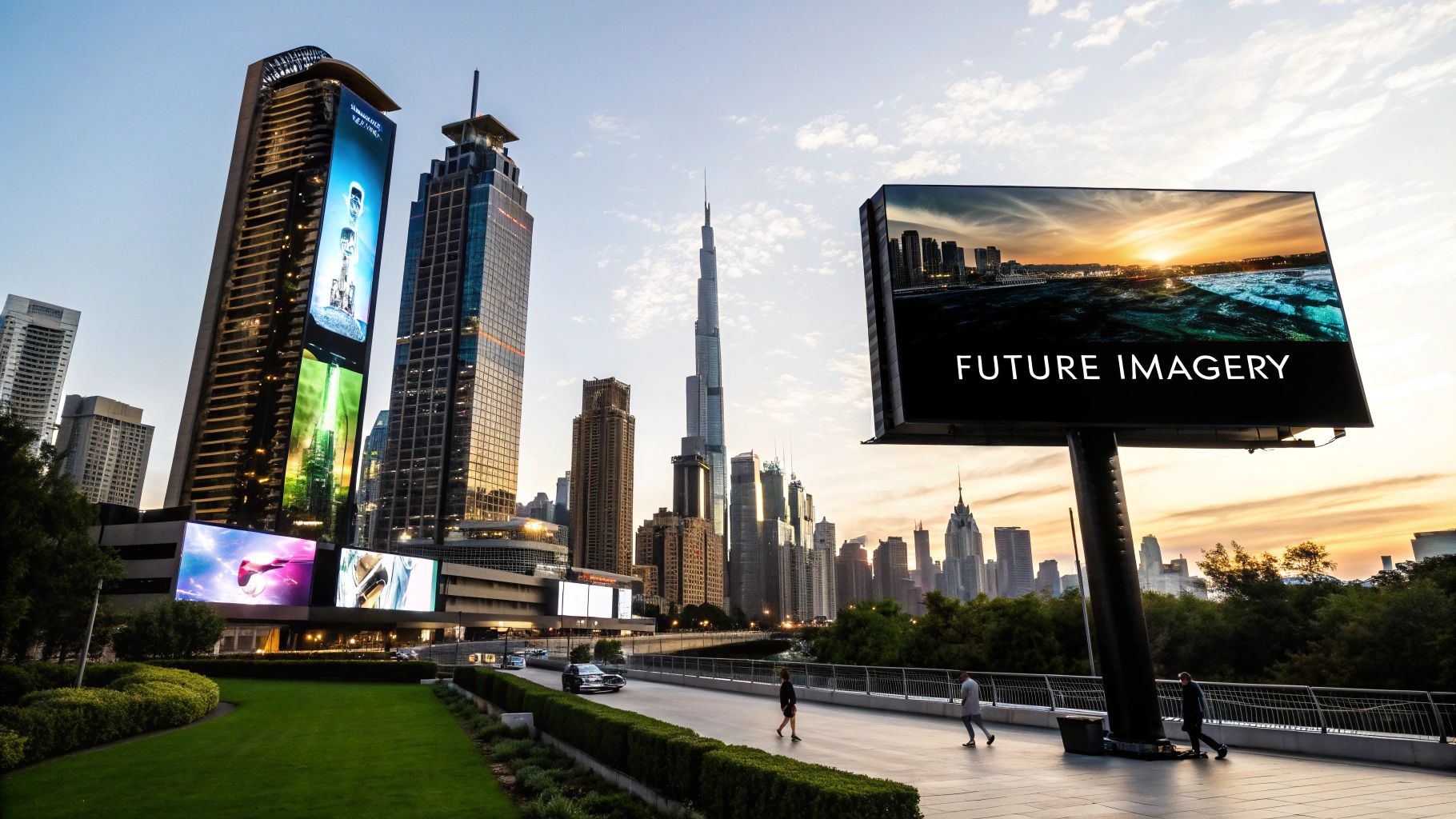
Even the best AI-generated image can feel a little... off. It might be technically perfect, but it's that final human touch in post-production that truly sells the illusion of reality. This is where you get your hands dirty and introduce the subtle flaws and artistic flair that our eyes expect to see.
Think of the raw AI output as a flawless digital negative. It has all the information, but it doesn't have a soul yet. A few quick tweaks in a program like Adobe Photoshop, Lightroom, or a capable free alternative can transform a sterile render into something with genuine character.
Introducing Imperfections for Authenticity
One of the biggest tells of an AI image is its digital perfection. Real-world photos have texture, noise, and subtle errors. Your job is to add those back in.
The easiest win here is adding a subtle layer of film grain. Just a light dusting can work wonders, breaking up those unnaturally smooth gradients and flat color fields that AI models love to create. It instantly adds a layer of analog warmth.
Next up is color grading. AI often produces colors that are perfectly balanced but emotionally flat. This is your chance to inject a specific mood. Want a cool, cinematic feel? Try desaturating the colors slightly and adding a touch of blue to the shadows. Or, if you're after that soft "golden hour" vibe, warm up the highlights.
Post-production isn't about fixing mistakes; it's about adding personality. You're moving beyond what the AI thinks looks real and applying your own artistic eye to create something that feels real.
This final step is becoming more and more crucial. By 2025, the enterprise segment is expected to account for over 74% of the AI image generator market, with businesses creating visuals for everything from marketing campaigns to product mockups. Being able to professionally finish these images gives you a serious edge. You can dig into the numbers in the full analysis from Meticulous Research.
Upscaling for Professional-Grade Detail
Once you've dialed in the mood and texture, there's one last thing to consider: resolution. Most AI generators produce images that look great on a phone or a website, but they can quickly fall apart when you need to print them or display them on a large screen. That's where AI upscalers come in.
These dedicated tools use their own AI models to intelligently enlarge your image, adding believable detail instead of just stretching the pixels. They analyze the content and fill in the missing information, resulting in a final product that's sharp, clear, and ready for just about anything.
I use upscalers all the time to:
- Sharpen facial features in portraits for that crisp, professional look.
- Enhance fine textures, like the weave of fabric or the grit of a landscape.
- Prep images for large-format printing without losing an ounce of quality.
By combining these subtle post-production edits with a final AI upscale, you close the loop. You've guided the process from a simple text prompt all the way to a truly realistic AI-generated image.
Got Questions About Realistic AI Images? We've Got Answers
Even when you think you've nailed all the right techniques, chasing true photorealism can feel like a moving target. Certain problems crop up again and again for everyone, from those unsettling "uncanny valley" results to navigating the tricky legal questions. Let's break down some of the most common hurdles you'll face.
Why Do My AI Images Still Look a Bit... Fake?
If your images have that tell-tale "AI look," it almost always boils down to a few culprits. The biggest one? Vague prompts. If you just ask for a "photo of a man," you'll get something generic and soulless. You have to start thinking like a photographer and get hyper-specific, describing the lens, the exact lighting, and the mood.
You also have to remember that not all AI models are built for realism. There's a reason you hear pros talking about Midjourney or very specific custom models on Stable Diffusion—they are simply better trained on the subtle details that make a photograph look real. After generation, always zoom in and check the details. The AI still messes up hands, eyes, and complex textures all the time.
A huge mistake I see people make is forgetting about negative prompts. It's not just about what you want; it's about what you don't want. I routinely add things like 'deformed hands,' 'extra fingers,' or 'plastic skin' to my prompts to steer the AI away from common pitfalls.
How Can I Get AI Portraits to Look Genuinely Human?
When it comes to human faces, every tiny detail matters. You can't just describe a person; you have to put them in a believable context. Start with the basics—age, expression, ethnicity—but then immediately ground it in a real-world scenario like "candid street photography" or "professional studio headshot."
But the real secret sauce is in the technical details. You need to feed the AI the language of photography. For instance:
- Prompt Example:
Photorealistic portrait of a 40-year-old woman, soft window lighting, shot on a Canon EOS R5 with an 85mm f/1.4 lens, shallow depth of field.
See the difference? That kind of specific instruction forces the AI to mimic the exact characteristics of a high-end portrait lens, from the creamy background blur to the quality of light. A final touch of subtle skin texture in a tool like Photoshop can be the last 5% that pushes the image from good to completely believable.
Can I Actually Use These AI Images for My Business?
This is where things get a bit complicated, as the rules are still being written. Your first and most important stop is the terms of service for whatever AI tool you're using. Many services, including Midjourney, have subscription plans that explicitly grant you the rights to use the images commercially.
The copyright situation itself is in flux. The U.S. Copyright Office has basically said that if an image is 100% AI-made with no meaningful human input, it can't be copyrighted. However, if you take that AI image and significantly modify it through your own editing, compositing, or other creative work, your final piece might qualify for copyright protection.
Bottom line: for any important commercial project, read the tool's latest terms and, if the stakes are high, consider getting a quick opinion from a legal professional.
Ready to create your own stunning, realistic AI characters and influencers? With CreateInfluencers, you can generate high-resolution, photorealistic images and videos in minutes. Turn your ideas into lifelike digital personas today. Start for free at CreateInfluencers.com.